










Learn how to connect to external tools without writing code using Connectors
Recently active
To view out-of-the-box integrations, visit front.com/integrations or navigate to Settings > Company > App store in Front.
Connectors provide a no-code framework for connecting Front with your external tools. You can bring data into Front or perform actions in third-party systems, all from within Front. Connector examplesSubscribe to this forum to view, share, or ask questions about real-world Connector use cases and workflows. You can also view our Connector playlist on YouTube. Stay in the know Join our Connectors group to access workshops, events, and share your thoughts with our team. Unfamiliar with APIs?Take our Academy course—it will guide you through the basics. No engineering experience required! OverviewThere are two types of Connectors: Application objects: instantly display data from external systems (e.g. customer records, shipments, orders) directly in conversations. Application requests: trigger actions in external systems (e.g. update an order, create a record, change a status). Connectors are created in Developer settings at the company level, by company admins. Once created, the
Want to create word clouds from your Front conversations? This is a great way to quickly visualize the most frequently mentioned topics, pain points, issues, and positive feedback across your inboxes.To get started, you'll need to be a Front admin (or ask your admin to follow this guide). Navigate to Developers and create a new app: Name your app and add a logo so its easily recognizable later: In the Features tab, click Add feature and select Sidebar Plugin: In the Sidebar URL field, paste the following url:https://dedarritchon.github.io/front-word-cloudand select the Clipboard component:Click create. We are all set. Go to your inbox, you should see your new Wordcloud app in the sidebar: Of course, the example was made with test data, but on real conversations it should show interesting facts about your customers.You can edit your resulting word cloud by tinkering with the settings.Hope this helps someone! If you tried it, Share your Wordclouds in the comments 😃
Now open: request access to the Amazon Connect beta (voice and SMS in Front) If your team is handling phone calls and texts in a different tool from the rest of your customer conversations, this one is for you. We just opened requests to join the beta for our Amazon Connect integration, which brings voice and SMS into Front alongside the email, chat, and everything else you already manage here. Once it is connected, you can place and receive calls, send and receive SMS, and pull up call recordings, transcripts, and AI summaries right in the inbox. The full history of a customer lives in one place instead of scattered across systems. This is a private beta and we are screening who joins, but if you are on the latest Professional plan or above and have a real voice or SMS use case, you are very likely a fit. You can preview the full setup steps in our Help Center. Want in? Request to join the beta group here.We will review and get back to you. Members get a dedicated space for updates a
We're building a way for external AI agents to operate as real teammates inside Front — assigned conversations, their own identity, clean handoffs to humans, and @mention support. No more webhook workarounds or human accounts standing in as proxies. If you've already built an agent or are actively working on one, we want to hear from you. We're in early development and looking to understand real use cases before we build. Interested? Join our beta group to get started.
Has anyone connected Front to Planhat? If so, did you find that this connection was worth your time?
You can now access 5 new templates in your workflows if you install the Asana and Salesforce integrations from our App Store. These integrations add rule and macro templates that let you take action in the Asana and Salesforce without having to build the Connectors yourself or start from scratch on the rules and macros. Simply load the rule or macro from the template library and customize from there! New rule templates Create lead in Salesforce Send task to Salesforce Send email to Salesforce New macro templates Create Salesforce opportunity Create Asana task To access these templates, go to your Settings, select a workspace or choose the Company level, and then click Rules and macros. From there, create a new rule or macro and look for the Connect section to find these templates.
We've revamped the Connectors Academy course to reflect all the recent improvements to the no-code framework—and this time, you'll build something you can actually use right away.The updated course walks you through building a Connector with Asana that lets teammates create a new task in Asana directly from Front. Along the way, you'll learn how to:Chain multiple app requests together to pull in workspaces, projects, and tasks from Asana Build dynamic dropdown menus that let teammates select the right project, task, or any other context—adaptable to any use case, like selecting the correct order for a customer! Use pagination and other new Connector features recently added to the platform Arrange complex logic visually in the flow builder, including using app request nodes to perform external actions without writing that logic inside a dynamic variableHead over to the course to access the new example, or view the full learning path if you’re new to Connectors.
If you’re having trouble getting up to speed with Connectors, you can now submit your feedback directly in Front. You should see a Share feedback option when using the Send app request node and other Connector options in your rules, macros, and other workflows. We look forward to hearing from you!
If you’ve been using Connectors or are curious about incorporating them into your Front workflows, we’re looking to partner closely with a few customers to help you adopt them or take your existing usage to the next level. We’d also like to hear about what improvements we could make. Interested? Become one of our design partners:
Connectors allow you to supercharge your macros with dropdown menus powered by API results. This means that Front teammates can select from a dynamic list of items populated from an external service, such as contacts from a CRM or goods from an inventory management system. When your teammates open the dropdown menu in the macro to select the item they want to view or update in the macro, they might be confronted with a long list of results, making it hard to find the correct item. To solve this, add search and pagination parameters to your app requests. Search parameters allow teammates to search only for the items they’re interested in, filtering down the total results. Pagination parameters automatically add scrolling to the list, pulling in more results as your teammates your mouse down reviewing results. Video walkthroughThis example video explains how to add search and pagination parameters to an app request that searches for charges in Stripe. For more details about connecting w
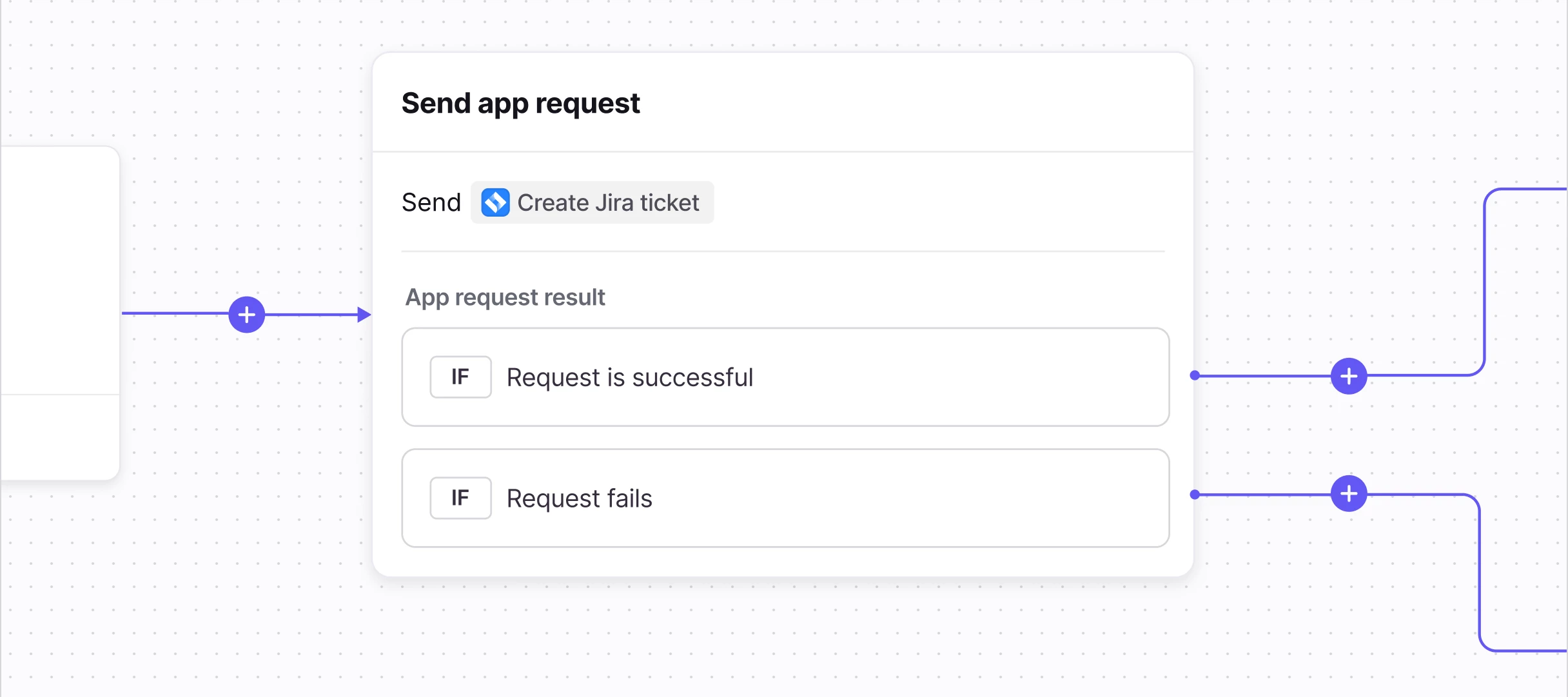
What we covered: We walked through how to build a Connector that lets your teammates create new Jira issues—like stories, tasks, and bugs—directly from Front conversations, no code required. Resources: Workshop Recording - Rewatch the session or share with teammates who couldn't attend Front Academy: API Fundamentals Course - Learn API basics like requests, responses, authentication, and how to read the docs Front Community - Explore more Connector examples and join our Connectors group to share what you're building and get help from other users Jira API Documentation - Reference for all available Jira API endpoints. Endpoints (called "app requests" in the Front Connector framework) used in the workshop include Get projects paginated, Get issue types for project, and Create issue. If you have any questions as you continue building, drop them in the comments below. We're here to help! Happy building!
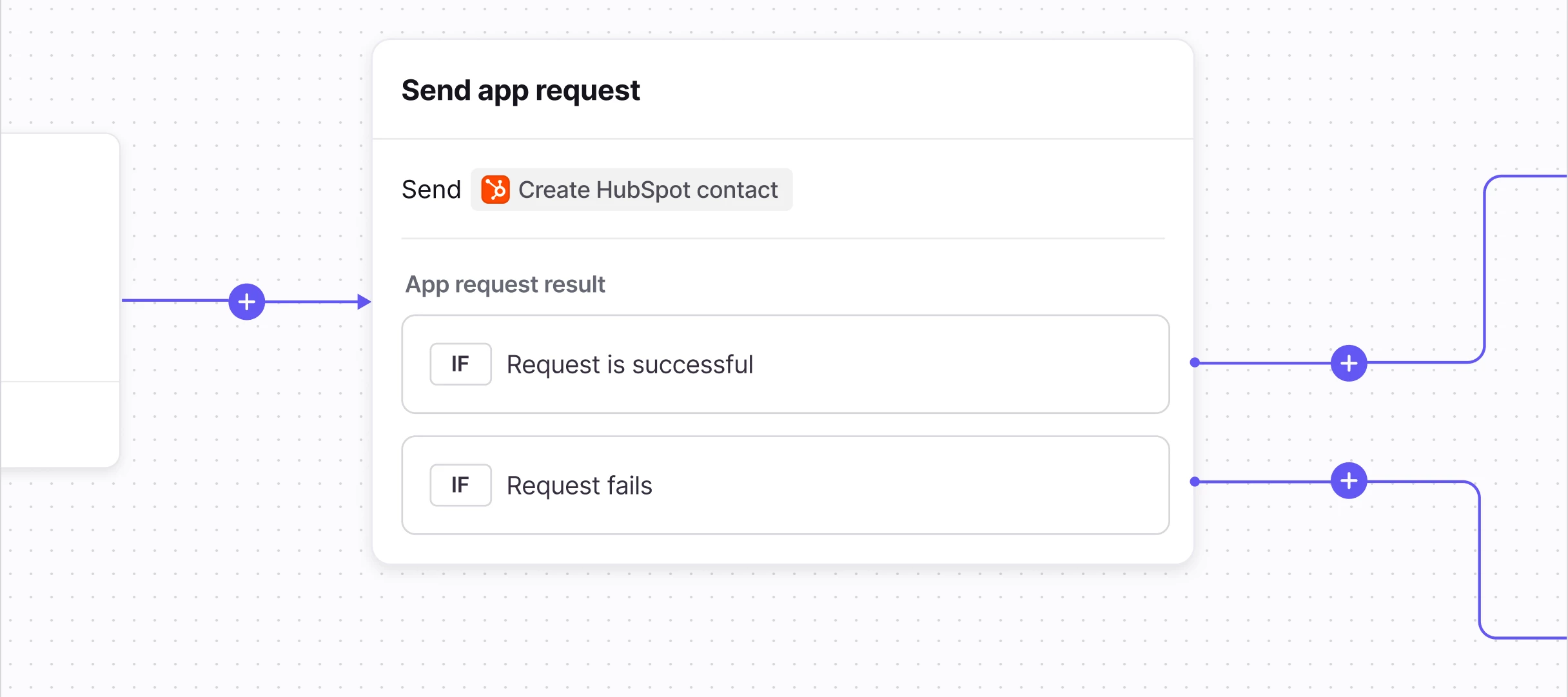
What we covered: We walked through how to build a Connector that lets your teammates update HubSpot contact properties—like names, phone numbers, and addresses—directly from Front conversations, no code required. This pattern can be adapted to update any HubSpot object, such as companies, deals, and tickets. Resources:Workshop Recording - Watch the session to learn how to set up your HubSpot Connector in just 10-15 minutesWatch a quick overview of the Connector in action here. During the workshop, there was a glitch in our system that prevented the Connector from demonstrating the phone number update! 🤦♀️ Front Academy: API Fundamentals Course - Learn API basics like requests, responses, authentication, and how to read the docs Front Community - Explore more Connector examples and join our Connectors group to share what you're building and get help from other users HubSpot API Documentation - Reference for all available HubSpot API endpoints. Endpoints (called "app requests" in th
What we covered: We walked through how to build a Connector that lets your teammates update Salesforce objects—like opportunities, cases, and contacts—directly from Front conversations, no code required. Resources:Workshop Recording (starts at 3:50) - Watch the session to learn how to set up your Salesforce Connector in just 10-15 minutes Front Academy: API Fundamentals Course - Learn API basics like requests, responses, authentication, and how to read the docs Front Community - Explore more Connector examples and join our Connectors group to share what you're building and get help from other users Salesforce API Documentation - Reference for all available Salesforce API endpoints. Endpoints (called "app requests" in the Front Connector framework) used in the workshop include Execute SOQL query, Describe object, and Update record. If you have any questions as you continue building, drop them in the comments below. We're here to help!Looking for more Connectors workshops? Register for
Join Front’s community team for three hands-on Connectors workshops in January! Follow along as we automate workflows between Front and your 3rd-party tools. January 15: Salesforce <> Front workflows: Use Connectors to update Salesforce objects directly from your inbox. January 22: HubSpot <> Front workflows: Use Connectors to easily manage customer data in HubSpot. January 29: Jira <> Front workflows: Use Connectors to create Jira tickets from Front with just a few clicks. Register nowCan’t make it? No problem! Join the community group to access self-paced examples and view the workshop videos later. Note: To access Front pre-built Connectors, you must be on the Professional plan or above.
We recently launched a detailed video explaining how to set up a macro leveraging Connectors to process Stripe refunds for customers. This week, we expand upon that video with a useful tip for filtering your list of customers using an email address.Hope you enjoy!Video tutorial: Want to learn more about Connectors?Check out these resources:Connectors space on the Community Help Center: Understanding Connectors Developer Portal: Connectors Documentation Academy Course—Unfamiliar with APIs? Start here!This example is just one way to harness the power of Front Connectors to streamline your workflows and improve efficiency. We can’t wait to see what you’ll build! Stay tuned for more examples and happy building!
Hey Front community!We’re thrilled to showcase a new example of leveraging Front Connectors to process refunds in Stripe directly from your Front inbox. The best part is, the full walkthrough takes less than 15 minutes and there is no coding required! This setup involves just 3 app requests and 1 macro, allowing teammates to easily select the customer, the payment to apply the refund to, and the amount to refund. Teammates will also see a confirmation message once the refund has been successfully processed in Stripe. Pre-requisites:Before diving in, make sure you’ve done the following in Stripe:Have access to your Stripe dashboard We recommend switching to your sandbox for testing Within your sandbox, you’ll want to add customers and invoices with payments charged via test credit cards so that the Front Connectors have access to usable data. You can do this in the dashboard; no coding required. Make note of your API keys for the sandbox environment (you can switch to a production key
Hi, I am setting up a new support portal, and started an Enterprise Trial so that we would have access to application requests so that we can hit our custom API. After setting up an app request, testing it successfully (“Test Successful”), and the status is “Ready,” it is NOT surfacing when selecting the “Select app request” action in a new macro/rule workflow. See the screenshots below.This is the app request, showing “Ready” status: And when creating a new macro, it keeps telling me to setup a new application request, because it cannot find the ones I have created:Is there something wrong with my account setup? Why can’t I use the app requests in rules/macros?
Already have an account? Login
No account yet? Create an account
Enter your E-mail address. We'll send you an e-mail with instructions to reset your password.