

Front MCP server starter guide: Plug-and-play prompts
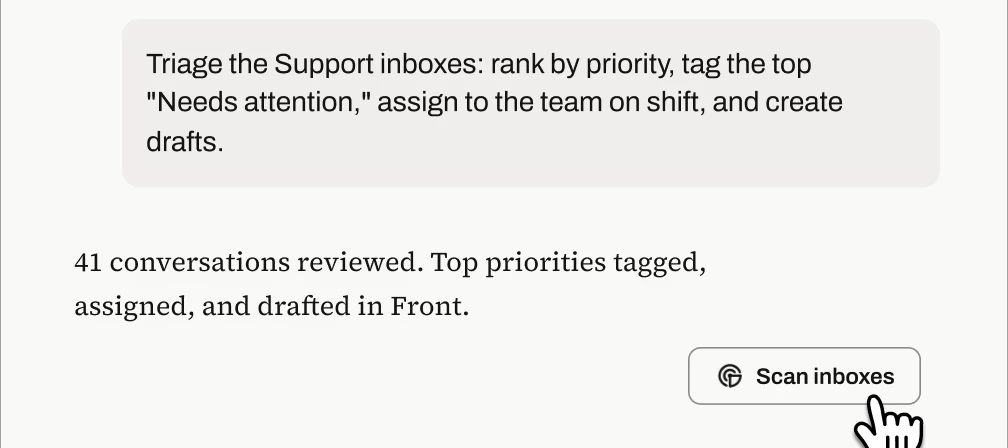
Front’s MCP server is here, and the best part is that you don’t need to invent prompts from scratch after your setup! We tested these templates against real Front inboxes and refined them until they produced accurate, verifiable results. Copy the ones below, swap in your {inbox names, dates, and details}, and you're minutes away from an auto-triaged queue, an account briefing, a trend report, or a knowledge-gap audit.
1. Inbox triage: prioritized action list
Team, personal, or both: Team (personal variant in the bonus section)
User profile: Support team leads and managers (running it), support agents (consuming the output in Front)
When to use:
- As a scheduled task that runs every morning or at every shift change: the team starts their shift with the highest-priority items already tagged, surfaced in a pinned view, and assigned, so they can action the top items immediately instead of scanning the queue
- Ad hoc after a volume spike, outage, or holiday backlog, when the queue is too big to eyeball
- When covering for another lead and you need to understand an unfamiliar queue fast
One-time setup in Front (5 minutes, admin):
- Create a tag like
🔴 Needs attention(and optionally🟡 Next up). - Create a shared custom view filtered to that tag, and pin it for the team. This is the view agents open at shift start.
- Optional, for auto-assignment: create a rule that round-robin or load-balances conversations receiving the
🔴 Needs attentiontag across the on-shift teammates.- Rule setup is: When tag {Needs attention} is added and Inbox is {Inbox name}, then Assign {round robin} or {load balance}
Prompt:
Triage the "{Tier 1 Support}" inbox in Front. Follow these steps
exactly:
- Search for all OPEN conversations in that inbox and confirm you've paged through all of them, not just the first page.
- Rank them by priority using these criteria by reading the subject, body content, and internal comments: (a) something is broken or blocking the customer vs. a question, (b) urgency signals like "URGENT" in the subject or SLA breach tags, (c) unassigned with no reply drafted yet, (d) how long since the last customer message. {Add more criteria as needed}
- CLEANUP FIRST: find conversations still carrying the "{🔴 Needs attention}" tag from the previous run. Remove the tag from any that have since been resolved or replied to, so the view only ever shows current items.
- Apply the "{🔴 Needs attention}" tag to the top {5} priority conversations and write drafts. On each one, add an internal comment with: one line on why it's priority, and the recommended next step.
- Finish with a summary table for me: ticket ID, priority reason, who it was assigned to, next step. Do NOT send any customer replies — tagging, commenting, and assigning only.
Customize: inbox name, priority criteria, tag name (must match the tag you created in setup), number of priority conversations, and Slack channel (if using Slack step below)
Run it on a schedule: set this prompt as a recurring scheduled task (daily, or at each shift change). The admin account runs it; agents never touch Claude — they just open the pinned view and start working.
Alternative delivery with Slack with a human checkpoint: if you'd rather a manager review before anything gets tagged or assigned, replace steps 4–5 with:
Post the ranked list to the {#support-triage} Slack channel: ticket ID, one-line summary, priority reason, recommended next step, and a link to each conversation. Take no actions in Front.
A manager monitors the channel and tags/assigns manually. This is also the right variant while you're building trust in the ranking during the first week or two. Many teams start here, then graduate to the tag-and-assign version directly in Front.
2. Account briefing: prep for a customer call in minutes
Team, personal, or both: Both
User profile: CSMs, account managers, support leads, AEs picking up an existing account
When to use:
- Before a weekly sync, QBR, or renewal call
- When an account escalates and you need the full picture fast
- During account handoffs, when the new owner needs history without archaeology
Goal: A complete one-page briefing on an account including stakeholders, recent conversations, open issues, and next steps — assembled from your actual Front history and any other connected tools.
Prompt:
- Build me an account briefing for {Acme Corp} ({acmecorp.com}) from Front inboxes called {Tier 1 Support} and my personal inbox {email@company.com}. Search through the last {60 days}. I have a {weekly sync / QBR / renewal call} with them on {date}.
- Search conversations for both the company name AND the email domain. If the name matches multiple different companies, tell me and confirm which one before continuing.
- Tell me the total number of conversations found.
- Read the full content of every conversation from that period — including internal comments, which often contain escalation notes and account context.
- Structure the briefing as:
- STAKEHOLDERS: every contact from their side who appears in conversations, with what each person cares about
- OPEN ISSUES: anything unresolved, with ticket IDs, current status, and who on our side owns it
- RECENT HISTORY: what happened in the period — issues raised, resolved, meetings held
- SIGNALS: expansion signs (new users being added, new use cases) or risk signs (repeated issues, frustrated tone, escalations)
- SUGGESTED NEXT STEPS: what should be handled before or raised during my call
- Cite conversation IDs throughout so I can click into anything.
Customize: company name + domain (including the domain avoids matching similarly named companies), Front inbox names, personal inbox email, lookback window, meeting type, and meeting date.
Good to know: plan, ARR, and contract details live in your CRM, not in Front conversations — unless your team logs them in Front (via comments, Account records, or an AI teammate). If you have a CRM connected to your AI client too, add: "Also pull plan, ARR, and renewal date from {Salesforce/HubSpot}."
3. Trend analysis: what are customers talking about?
Team, personal, or both: Team
User profile: Support managers, ops leads, product managers
When to use:
- Weekly or monthly team reviews
- Preparing voice-of-customer input for product planning
- After launching a feature or change, see what it's generating in the queue
- When leadership asks "what are customers saying about X"
Goal: A granular breakdown of all conversations in a defined time window including themes, volumes, and representative examples you can click into.
Prompt:
- Analyze conversation trends in the "{Tier 1 Support}" inbox in Front for {the last 30 days}.
- Search ALL statuses (open, archived/resolved) — not just open conversations. Note: the date filter works on when a conversation was last updated.
- Tell me the total conversation count for the period, and confirm how many you actually reviewed. If the volume is too large to review every one, say so explicitly and tell me your sampling approach — do not present a sample as if it were everything.
- Categorize all conversations into themes based on their subjects and content (e.g., billing, integrations, how-to questions, bugs, feature requests — adjust categories to what you actually find).
- For each theme: count, % of total, trend vs. the prior period if I asked for one, and 2-3 example conversations with ticket IDs so I can verify.
- Deep-read {2} full conversations per major theme so your summaries reflect actual content, not just subject lines.
- Close with: the top 3 things driving volume, and anything unusual or emerging I should know about.
Customize: inbox name, time window (a specific date works better than "recently"), and how many conversations per major theme to deep-read.
4. Knowledge gaps: find what your help center is missing and draft it
Team, personal, or both: Team
User profile: Support managers, knowledge base owners, support operations
When to use:
- When deflection metrics dip
- Monthly or quarterly KB maintenance cycles
- When the same question keeps appearing in the queue and you suspect a content or findability problem
Goal: Identify topics customers repeatedly ask about that your public help center doesn't cover, verify each gap against the actual help center, and get article drafts ready to publish.
Prompt:
Identify knowledge gaps by comparing our Front support conversations against our public help center at {https://help.yourcompany.com}.
- Search the "{Tier 1 Support}" inbox for conversations from {the last 30 days}. Include resolved conversations, not just open ones.
- Identify recurring question topics — anything that came up in {3+} separate conversations. Read the full conversations for each candidate topic so you understand what customers actually asked, not just the subject lines.
- IMPORTANT: For each candidate topic, search our help center at {https://help.yourcompany.com} BEFORE concluding anything. Only report a topic as a gap if you searched and found no article that answers the customer's actual question. For each topic, tell me:
- GAP: no article exists (link the searches you ran)
- PARTIAL: an article exists but doesn't answer what customers are asking (link the article and explain what's missing)
- FINDABILITY: the article fully answers it, but customers are filing tickets anyway (link the article — this is a discovery problem, not a content problem)
- Rank the verified gaps by ticket volume — how many conversations each gap generated in the period.
- For the top {2} gaps, draft a complete help center article: title, the problem in the customer's words, step-by-step resolution, and when to contact support. Base the drafts on how our agents actually resolved these conversations. Put the drafts in a document I can review and edit — do not publish anything.
Customize: your help center URL (required — the AI can't verify gaps without it), inbox name, time window, the recurrence threshold (3+ conversations), and how many article drafts you want.
Good to know: this works with any public help centers the AI can browse, not private/internal Front knowledge bases. For each claimed gap, the prompt forces the AI to show the searches it ran; if it can't show them, don't trust the gap. Article drafts land in a document for your review; publishing to your knowledge base stays a human step.
Bonus: personal morning briefing
Give me a morning briefing from Front. Search all shared inboxes I have access to and my own personal inbox {email@company.com}, then find: (1) conversations assigned to me that are open, (2) open emails in my personal inbox 2) the the date range of after {yesterday's date}. For each: one line on what it needs. Rank by urgency. Don't take any actions — this is read-only.
Tips for better results
AI often confidently makes decisions on its own if you don’t give specific instructions, so be sure to avoid any vagueness where it matters.
- Name inboxes exactly. "Support" won't reliably match "Tier 1 Commercial (Support)."
- Specify dates or ranges. "Last 30 days" or "June 7-14." Date filters run on when a conversation was last updated.
- Demand coverage disclosure. Ask "how many did you find vs. how many did you review?" if the volume matters to you — the difference between a full analysis and a sample makes a difference.
- Force deep reads. Say "read the full conversation, not just the subject line" for anything you'll act on, and ask for ticket IDs so you can verify.